
Azure Monitor Agent & AMPLS - The Gotchas Nobody Warns You About
Background
I had recently deployed a number of VMs and Virtual Machine Scale Sets (VMSS) into an environment that was sending monitoring data to a centralised Log Analytics Workspace via the Azure Monitor Agent (AMA). Everything was working well, data was flowing, and life was good. Then an Azure Monitor Private Link Scope (AMPLS) was linked to the workspace to secure the ingestion path over private connectivity.
This is where things got interesting.
Some VMs continued to ingest data perfectly, others stopped completely, and a few were in a strange middle ground where heartbeats were flowing but nothing else. The VMs that were still working had been onboarded before the AMPLS was linked, and something about that timing meant they were unaffected. The rest needed investigating.
What followed was a deep dive into AMPLS, AMA, Data Collection Rules (DCRs), Data Collection Endpoints (DCEs), managed identities, and a whole collection of gotchas that are either buried deep in Microsoft’s documentation or not documented at all. This post covers everything I found, the problems I hit, how I diagnosed them, and more importantly how I fixed them.
AMPLS Overrides Workspace Network Settings
This was the first thing that caught me out and it set the scene for everything that followed.
The Log Analytics Workspace was configured to accept data ingestion and queries from all networks. Once it was linked to the AMPLS resource things changed.
The AMPLS access mode acts as a network-level gate that overrides the workspace’s own network settings. Once a workspace is linked to an AMPLS configured with Private Only mode, public ingestion and queries are blocked regardless of what the workspace itself allows. The AMPLS setting wins, every time. This is why the VMs that were onboarded before the AMPLS link continued to work, they were already established, but any new connections attempting to come in over the public path were rejected.
The fix here is really about understanding the commitment you are making. Linking a workspace to an AMPLS with Private Only mode means you need to ensure all agents and query clients can reach the workspace via the private link path. If you still need public access alongside private access, set the AMPLS access mode to Open instead. Workspaces that are not linked to the AMPLS are unaffected and continue to accept public traffic normally.
Key Takeaway: AMPLS access mode is not a suggestion. “Private Only” means private only, regardless of what the linked workspace’s own network settings say.
Managed Identity Misconfiguration Causes Silent Failures
This one was particularly frustrating because everything looked fine on the surface.
VMs had the AMA installed and the extension status showed Provisioning Succeeded. Great, job done, right? Not quite. No data was flowing to Log Analytics, not even heartbeats. The environment used a mixture of system-assigned and user-assigned managed identities, and this turned out to be the root of the problem.
AMA uses a managed identity to authenticate against Azure AD and retrieve its configuration. The behaviour depends entirely on how the extension was deployed:
- If a user-assigned managed identity (UAMI) is specified in the AMA extension settings, AMA calls the Instance Metadata Service (IMDS) requesting a token for that exact UAMI resource ID. It will not fall back to any other identity on the VM.
- If no identity is specified, AMA defaults to the system-assigned managed identity (SAMI). If the SAMI is disabled, authentication fails silently.
- The extension still reports
Provisioning Succeededeven when authentication fails, making this incredibly easy to miss.
For Flexible VMSS specifically, this is even more problematic. Flexible VMSS does not support system-assigned managed identities at all. AMA deployed without explicitly specifying a UAMI will attempt to use a SAMI that can never exist, and it will fail silently with no useful error message.
How To Diagnose
You can test token acquisition from inside the VM using the IMDS:
# System-assigned identity
$response = Invoke-RestMethod -Uri "http://169.254.169.254/metadata/identity/oauth2/token?api-version=2018-02-01&resource=https://monitor.azure.com/" -Headers @{Metadata="true"} -Method GET

# User-assigned identity
$clientId = "<client-id-of-user-assigned-identity>"
$response = Invoke-RestMethod -Uri "http://169.254.169.254/metadata/identity/oauth2/token?api-version=2018-02-01&resource=https://monitor.azure.com/&client_id=$clientId" -Headers @{Metadata="true"} -Method GET
If you get identity not found the identity is not attached to the VM. If you get multiple user-assigned identities then AMA does not know which one to use and you need to be explicit.
The Fix
For VMs using a UAMI, the AMA extension must be deployed with the authentication block in its settings:
{
  "authentication": {
    "managedIdentity": {
      "identifier-name": "mi_res_id",
      "identifier-value": "/subscriptions/<sub-id>/resourceGroups/<rg>/providers/Microsoft.ManagedIdentity/userAssignedIdentities/<identity-name>"
    }
  }
}
For Flexible VMSS this is mandatory. The UAMI must be both assigned to the VMSS (in the identity block) and referenced in the AMA extension settings. Neither side discovers the other automatically.
Key Takeaway: “Provisioning Succeeded” does not mean “working”. AMA silently fails authentication and never self-recovers. Always verify token acquisition from the guest OS.
Missing DCE Association in AMPLS Environments
This one had me going for a while. VMs had DCR associations (DCRAs) in place and AMA was authenticated, but still no data was flowing. In some cases heartbeats appeared but nothing else, and in others there was no data at all.
The problem is that in AMPLS environments with Private Only mode, AMA needs to know which Data Collection Endpoint (DCE) to contact to retrieve it’s configuration. This is handled by a separate association resource called configurationAccessEndpoint, which is a DCRA with a specific reserved name scoped to the individual VM.
This is the bit that caught me out. The DCR association tells AMA what to collect. The DCE association tells AMA where to retrieve its configuration from over the private link path. Both must exist, and they are completely separate resources. Without the DCE association, AMA falls back to the default global Azure Monitor endpoint, which is blocked by the AMPLS Private Only policy.
How To Diagnose
az monitor data-collection rule association list --resource "/subscriptions/<sub-id>/resourceGroups/<rg>/providers/Microsoft.Compute/virtualMachines/<vm-name>" --query "[].{Name:name, DCR:dataCollectionRuleId, DCE:dataCollectionEndpointId}" -o table
In the output, look for at least one row with a value in the DCR column (the DCRA) and one row where the Name is configurationAccessEndpoint with a value in the DCE column. Any VM missing either entry needs remediation.
The Fix
Create the configurationAccessEndpoint association on every VM and VMSS instance in scope. The DCE referenced must be added to the AMPLS scoped resources.
One important gotcha here: when you create this association via the Azure portal, the name configurationAccessEndpoint is set automatically and you never have to think about it. However when creating it in code, whether that is Terraform, Bicep, or the AZ CLI, you must specify this exact name yourself. This is a reserved name that the AMA control plane looks for when determining which DCE to use for configuration retrieval. If the association name does not match configurationAccessEndpoint exactly, AMA will not recognise it as the configuration endpoint and the DCE will not function. The association will exist in Azure, it will show up in the resource list, but AMA will ignore it completely.
Key Takeaway: In AMPLS environments, every VM needs two things: a DCR association (what to collect) and a DCE association (how to connect). Missing either one produces different symptoms, but both result in incomplete or absent data.
DCE Not Added to AMPLS Scoped Resources
This is a quick one but easy to overlook. DNS was resolving correctly to private IPs and the agent was authenticating, but data was still not flowing.
For AMA to ingest data over a private link, both the Log Analytics Workspace and the Data Collection Endpoint must be added as linked resources in the AMPLS scope. If the DCE is missing from the AMPLS scope, the agent will attempt to reach the DCE’s ingestion and configuration endpoints over the public internet. If AMPLS access mode is set to Private Only, those requests are rejected outright. If set to Open, data might flow over public routes, which could also be blocked by NSG or firewall rules depending on your network configuration.
How To Diagnose
az monitor private-link-scope scoped-resource list --scope-name <ampls-name> --resource-group <rg>
Confirm both the workspace and the DCE appear in the scoped resources list. If either is missing, add them.
Key Takeaway: The AMPLS scoped resources list must include every resource in the data path, not just the workspace. The DCE is just as important.
Flexible VMSS Instances Do Not Inherit DCR/DCE Associations
This was the one that really surprised me. A Flexible VMSS had the correct DCE and DCR associations configured at the scale set level. When new instances were provisioned, AMA was installed via the VMSS model’s extension profile and authenticated successfully, but the agent just sat there doing nothing.
The reason is that DCR and DCE associations are separate Azure resources (Microsoft.Insights/dataCollectionRuleAssociations) scoped to individual VMs. They do not live in the VMSS model. There is no property on the VMSS resource where you can specify a DCR or DCE and have it inherited by new instances. The VMSS has no awareness of the DCRA concept at all.
When a new Flexible VMSS instance scales out, the following happens:
- The UAMI is present (inherited from the VMSS identity block)
- The AMA extension is installed (inherited from the VMSS extension profile)
- AMA starts, authenticates via the UAMI, and calls the control plane
- The control plane looks for DCRAs scoped to that specific VM resource ID
- It finds none, because no DCRA exists yet for this newly created instance
- AMA has no configuration and collects nothing
The Fix
Use Azure Policy with DeployIfNotExists effect to automatically create DCR and DCE associations on new instances. The built-in initiative “Configure Windows/Linux virtual machines to run Azure Monitor Agent with user-assigned managed identity-based auth and associate with DCR” handles the AMA extension and DCR association.
However, the built-in policy initiatives do not handle the DCE configurationAccessEndpoint association. This requires either a custom DeployIfNotExists policy or an Event Grid-triggered automation on VM creation events.
The division of responsibility is important to understand:
- VMSS model handles: UAMI assignment, AMA extension installation
- Azure Policy handles: DCR association, DCE association
Neither can do the other’s job. You need both working together.
Key Takeaway: For Flexible VMSS, the agent gets installed automatically but arrives with zero instructions. Policy is the mechanism that gives it something to do. Remember that Flexible VMSS only supports user-assigned managed identity, so the built-in policy initiatives that use system-assigned MI will fail. You must use the UAMI-specific variants.
Multiple DCRs and How AMA Processes Them
This is one of those areas where I see a lot of confusion, so I wanted to cover it here. The question is: when a VM has multiple DCR associations, does AMA use one DCR or all of them, and does this cause conflicts?
AMA downloads the configuration from every associated DCR and processes them independently. There is no priority, override or deduplication logic.
This has some implications worth knowing about:
- If two DCRs define the same data source with different configurations, AMA honours both. For example, if DCR-A collects Syslog at
LOG_DEBUGand DCR-B collects atLOG_WARNING, the agent collects at the more verbose level. - If two DCRs send the same data to different workspaces, you get duplicate data in both.
- If they send to the same workspace, you may see duplicate entries.
Each DCR can reference a different DCE (or no DCE) via its own dataCollectionEndpointId property. The only shared element across all DCRs is the configurationAccessEndpoint DCE association on the VM, which is used purely for retrieving configuration.
How To Verify Which DCRs Are Active
# List all associations on a VM
az monitor data-collection rule association list --resource "/subscriptions/<sub-id>/resourceGroups/<rg>/providers/Microsoft.Compute/virtualMachines/<vm-name>" -o table

# Inspect what each DCR collects
az monitor data-collection rule show --name "<dcr-name>" --resource-group "<rg>" --query "{DataSources:dataSources, Destinations:destinations, DataFlows:dataFlows}" -o json
Key Takeaway: AMA does not select a DCR, it uses all of them! Design your DCRs knowing they will be processed, and watch for overlapping data sources that can cause duplicate ingestion.
Dual AMPLS in the Same Region Causes DNS Conflicts
This is a subtle one but worth being aware of. If two AMPLS resources exist in the same region sharing the same private DNS zones, connectivity can break for resources linked to only one of them.
AMPLS creates DNS A records in private DNS zones. Some of these are shared global endpoints (such as api.monitor.azure.com) that exist once per zone regardless of how many AMPLS resources are in play. When a second AMPLS creates its private endpoint, the DNS records for these shared endpoints are overwritten to point to the new private endpoint’s IP addresses. Last write wins.
Resource-specific endpoints (per-workspace, per-DCE) are additive and do not overwrite each other. But the shared global endpoints do, which means resources linked only to the first AMPLS become unreachable via those global records.
There is an additional networking consideration here that is easy to overlook. If you do have multiple AMPLS resources within the same DNS boundary, the shared global endpoints will resolve to the private IP address of whichever AMPLS wrote last. This means all clients across all spoke VNets need to be able to route to the private endpoint IPs of that AMPLS, not just the one their resources are linked to. If a spoke VNet cannot reach those IPs due to missing VNet peerings, route table gaps, or NSG rules blocking traffic, the connection will fail even though DNS resolved correctly. If you suspect routing is the issue, check your VNet flow logs and NSG flow logs to confirm whether traffic is reaching the private endpoint or being dropped silently.
The resolution is to use a single AMPLS per DNS boundary. When I say “DNS boundary” I mean the set of resources that share the same private DNS zones. If your hub VNet has privatelink.monitor.azure.com, privatelink.oms.opinsights.azure.com, and the other related zones linked to it, and all your spoke VNets resolve DNS through that hub, then everything in that topology is within the same DNS boundary. Any AMPLS private endpoint registered in those zones will affect every VNet that resolves through them. Two AMPLS resources in completely isolated networks with their own separate private DNS zones would be in different DNS boundaries and would not interfere with each other.
If you must migrate between AMPLS resources within the same DNS boundary (for example, during a subnet expansion), link all resources to both AMPLS simultaneously before cutting over. A resource can be linked to up to 100 AMPLS instances, so during migration traffic via either private endpoint succeeds as long as the resource is in both scopes.
| Scenario | Safe? |
|---|---|
| Two AMPLS, same DNS, resources in only one | No |
| Two AMPLS, same DNS, resources in both | Yes |
| Two AMPLS, separate DNS (isolated networks) | Yes |
| Single AMPLS (steady state) | Yes |
Key Takeaway: Shared global endpoints are the risk. Use a single AMPLS per DNS boundary, and during migrations, ensure resources are linked to both old and new AMPLS before cutting DNS over.
DCR Best Practices: Separate Windows and Linux
A single combined DCR for both Windows and Linux is technically possible using kind: All, but it causes operational headaches that are best avoided.
The built-in Azure Policy initiatives for AMA are split by OS. Separate DCRs map cleanly to separate policy assignments, whereas a combined DCR complicates policy condition logic. Governance and lifecycle management also become more complex as the DCR grows.
At minimum, use one DCR for Windows OS baseline (Windows Events, performance counters) and one for Linux OS baseline (Syslog, Linux performance counters). Add separate DCRs for workload-specific collection such as IIS logs, custom logs, or SQL diagnostics. AMA supports up to 30 DCR associations per VM, so there is plenty of headroom to keep things modular.
VMs Working Without an Explicitly Configured Managed Identity
I came across this one during the investigation and it is worth calling out. Some VMs appeared to have AMA working and ingesting data despite no managed identity being explicitly configured.
The explanation is that when resources are added to a DCR via the Azure portal, the default option is to enable a system-assigned managed identity automatically. The portal silently enables the SAMI on the VM as part of the DCR association workflow. The VM technically has a managed identity, it just was not created through an explicit action by the operator.
This is not necessarily a problem in itself, but it is important to understand that the identity exists and was created implicitly. In environments moving to UAMI-based authentication (particularly for Flexible VMSS or standardised identity management), these implicitly created SAMIs need to be accounted for during migration.
Quick Reference: Diagnostic Order for Zero Data
For a VM with zero data including no heartbeats, work through this sequence:
- Is the AMA service/extension running?
- Can the VM get a token from IMDS for the correct identity?
- Do the DCE endpoints resolve to private IPs?
- Can the VM reach those IPs on port 443?
- What do the AMA logs say? (Linux:
/var/opt/microsoft/azuremonitoragent/log/mdsd.err; Windows: Event Viewer under Azure Monitor Agent) - Do the DCRA and DCE associations exist for this VM?
- Force an extension update as a last resort.
The answer will almost always surface at step 2, 3, or 4.
AMA Data Flow Lifecycle
Understanding how data flows through AMA helps narrow down where a failure is occurring. The diagram below shows the full authentication and DCR retrieval flow, including the identity decision point where things most commonly go wrong.
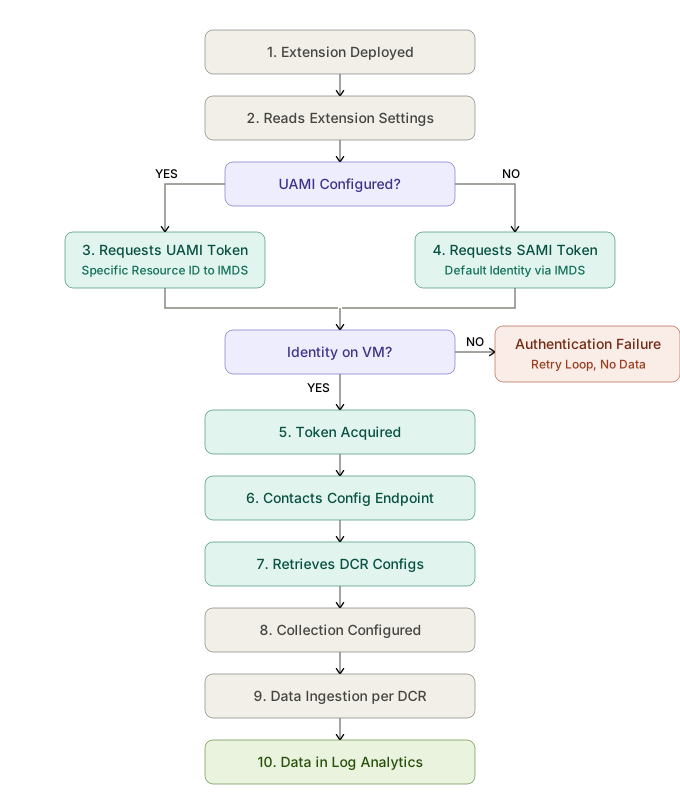
The lifecycle breaks down into the following stages:
| Stage | What Happens | Failure Symptom |
|---|---|---|
| 1. Extension Deployed | AMA binary installed on guest OS | Extension provisioning fails |
| 2. Reads Extension Settings | AMA checks for authentication configuration | Misconfigured identity type |
| 3. Requests UAMI Token | If UAMI configured, requests token for specific resource ID | Identity not found, or multiple identities error |
| 4. Requests SAMI Token | If no UAMI configured, requests default identity token | SAMI disabled or not present (e.g. Flexible VMSS) |
| 5. Token Acquired | OAuth token received from IMDS | Authentication failure, silent retry loop, no data |
| 6. Contacts Config Endpoint | AMA connects to DCE for configuration retrieval | No data at all, including no heartbeats |
| 7. Retrieves DCR Configs | AMA downloads and merges all associated DCR configurations | No data at all, including no heartbeats |
| 8. Collection Configured | AMA configures local collection pipelines | Heartbeats present but no log data |
| 9. Data Ingestion per DCR | AMA pushes data to DCE ingestion endpoint for each DCR | Heartbeats present but no log data, or intermittent loss |
| 10. Data in Log Analytics | Data lands in workspace tables | Ingestion delay (typically a few minutes) |
The diagnostic principle here is straightforward: heartbeat data is generated independently of DCR configuration. If heartbeats are flowing, stages 1 to 7 are working. If there are no heartbeats, the failure is at one of the earlier stages. The diagram above highlights the identity decision point between steps 2 and 5 as this is where the majority of silent failures occur.